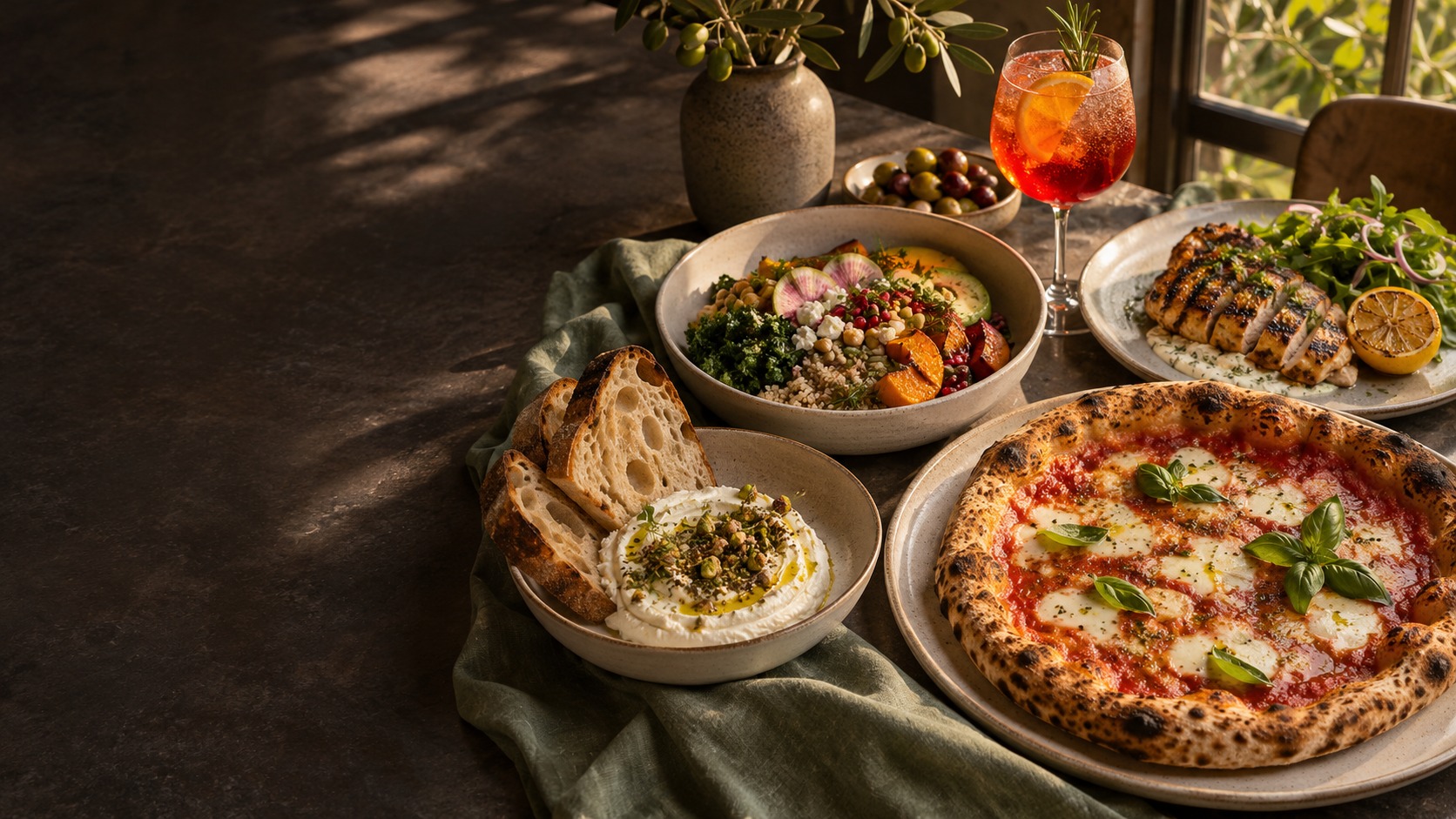
A restaurant experience you can explore from the first craving to the final collection. Discover the menu, make a dish your own and follow a test order through the kitchen.
This is a demonstration restaurant. No food is prepared or delivered, and no real payment is collected. Please use invented customer details. Email notifications are intentionally disabled; the presenter can show their designs and previews.
Explore the menu · Try a table reservation · Order at Table 1
A good place to start
- Find your favourite. Browse 24 dishes across eight categories, search for an ingredient or dish, and try the dietary filters.
- Make it yours. Open a burger, pizza or bowl to see how choices affect availability and price.
- Place a test order. Choose pickup, select an available time, enter invented details and use the offline payment option. No money changes hands.
- Follow its progress. Keep the tracking page open while your presenter moves the order through the staff workspace.
One menu, plenty to discover
The menu is designed to feel like a working restaurant: small plates, signature mains, configurable favourites, plant-based choices, sides, desserts and drinks. Photography, descriptions, prices, dietary labels and allergen notes show how a restaurant can present its own food. Here they are illustrative demo content, not advice about real food or allergy safety.
Search, filter and browse
Search for a dish or ingredient, switch between grid and list views, and browse the category navigation. Try the dietary filters, then clear them to return to the full menu. The featured collection is a useful shortcut to the dishes the restaurant wants to introduce first.
Build a burger
Open a burger and work through its choices. Required selections make the next step clear; optional extras let you add a little more. Watch the displayed price as you change selections, add more than one item, or remove an extra. Add the burger to your bag, reopen it there and check that your choices remain available to edit.
Choose a pizza size
Open a pizza and change its size. This demonstrates a choice that sets the base price. Explore the remaining options: some extras appear only when their related choice is selected, so a complex menu can stay easy to understand. Change the controlling choice again to see how the available configuration responds.
Use a bowl’s included toppings
Build a bowl and choose from its toppings. The included allowance demonstrates how a restaurant can bundle a number of choices into the dish. Continue beyond that allowance and check the additional price before adding the bowl to your bag.
Add a personal message to dessert
Choose the dessert with an inscription option. Enter a short, invented message and watch the inscription charge update. This is useful for showing paid text customisation alongside ordinary single-choice, multiple-choice and quantity extras.
See stock and availability
Look for the sold-out dish and compare it with the orderable menu. Limited-stock items and unavailable choices demonstrate how the menu can explain availability before checkout. Test orders can change stock in this demo, so an item’s remaining quantity may differ from one visit to the next.
Try the three ways to order
Pickup: choose a time that works
Select pickup, add a dish and open the bag. Choose an available date and collection time, then review your item choices, quantities, notes, tip and total. The available times come from the restaurant’s service schedule and capacity. Complete the test checkout with invented contact details and the offline payment option.
Delivery: see location-based pricing
Select delivery and compare the following sample postcodes. Delivery fees, food-subtotal minimums and free-delivery thresholds are shown in DKK. These are demonstration zones; no delivery will take place.
| Postcode | Delivery fee | Minimum food subtotal | Free delivery threshold |
|---|---|---|---|
| 1050 | 29 DKK | 150 DKK | 400 DKK |
| 2100 | 49 DKK | 200 DKK | 600 DKK |
| 9000 | Outside the demo delivery area. Try pickup instead. | ||
Start below the zone’s minimum, then increase the bag and compare the result. Try a postcode outside the area to see the rejection message. Use an invented street address and review the final checkout total after any promotion.
Dine-in: let the table identify itself
Open the Table 1 ordering link to simulate scanning its QR code. The link establishes the table context for that browser, so the order can reach staff with its table attached. Add a dish and try the dine-in checkout. In a real restaurant, the same link would be printed as a QR code on the table.
Try an offer, then test its limits
- WELCOME10: 10% off the food subtotal when it reaches 100 DKK. Try it below and above the minimum.
- PICKUP25: 25 DKK off a pickup order with a food subtotal of at least 200 DKK. Switch to delivery to see why a pickup-only offer cannot be used there.
Check the discount and final total in the bag. Promotions apply to the eligible food subtotal; delivery, fees and tips are separate parts of the order. Checkout rechecks the current basket and offer rules.
Keep the order moving
After placing a test order, keep its private tracking page open. Ask your presenter to open that order in the staff workspace, review its choices and move it from received to accepted, preparing and ready. Collection or delivery workflows then provide their appropriate final steps.
The presenter can also demonstrate staff notes, agreed service changes, cancellation, payment status and receipt previews where the order allows them. Test orders are saved in the demo system and can affect stock, capacity and reports. They are not food purchases.
A place at the table
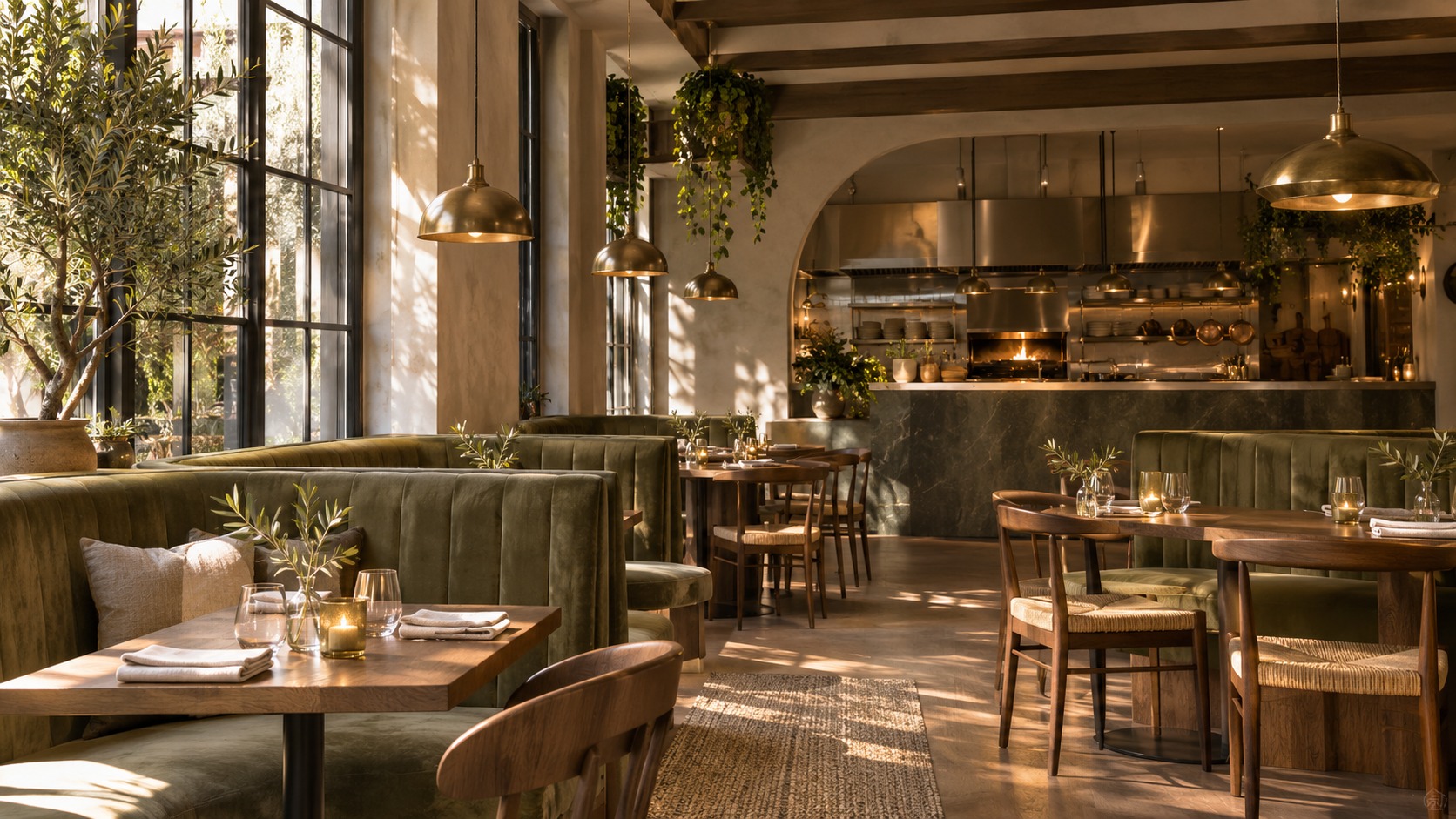
Open reservations, choose a party size and select an available time. Submit an invented guest name and contact details. A request is not a confirmed booking: the presenter can accept it in the reservations workspace, move its time, mark guests seated, complete the visit or demonstrate a cancellation.
The reservation page explains the request’s status and confirmation deadline. Larger parties and occupied tables can change the available times. No real table is reserved, and confirmation emails are not sent by this demo.
Behind the counter
For a customer presentation, ask your presenter to show the staff experience through their private Hostinger WordPress admin access. Public visitors are not given staff credentials.
- Service and POS: receive online orders, enter a staff order, review service times and manage the kitchen’s progress.
- Menu and add-ons: organise categories, publish dishes, edit prices, manage stock and build reusable options with conditional rules.
- Storefront Studio: explore the restaurant’s identity, featured dishes, cover photography, colours, typography and layout.
- Email Studio: preview branded order and reservation messages with their essential transaction details. Sending is disabled for this demonstration.
- Receipt Studio: preview customer receipts and kitchen tickets, including item choices and service details.
- Reservations and reporting: view table requests, service activity and the demo records created during the walkthrough.
What this demo does—and what needs a real connection
The menu, options, bag, offline checkout, tracking, tables and reservation flows use the installed TableLane system. Card payments and Stripe refunds require a restaurant’s own configured Stripe test or live connection; this demo does not collect card details or simulate a successful provider transaction. Physical printing requires the printer companion, a connected computer and real printer checks. A receipt preview does not prove that paper was printed.
Keep personal information out of test notes, messages and account fields. If you try account registration or recovery, use a test identity and remember that separate WordPress account emails may depend on its own setup. Demo records may remain until the operator clears them.